

Arrange content visually
Drag text, images and sections into place, then fine-tune their size and spacing until the page reads clearly.
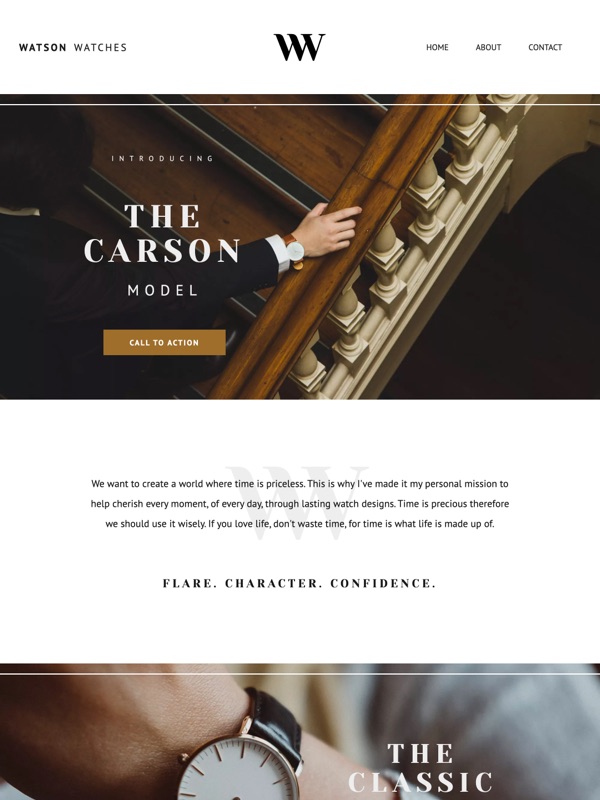
Classic gives you a visual canvas. Pick a template, then move, resize and restyle every piece of the page until it looks the way you pictured it.
Look at how a template groups information and guides a visitor. The sample business is just a stand-in, so a great layout can work for you even if its photos and copy don’t.

The tools you use every day in Classic, from the first section to the last check.
Drag text, images and sections into place, then fine-tune their size and spacing until the page reads clearly.
Organize portfolios, products or projects into galleries, and check how each image crops on smaller screens.
Before you publish, look at the page on a phone as well as a computer. Links, forms and crops all deserve a second look.
Publishing posts or selling online? Classic has dedicated tools for both. Confirm the plan or add-on your project needs.
Create your account and start shaping your Classic site.
Get started